Set up in 15 minutes
Eight short steps on your phone. You can skip any of them and come back later. If you can send a text, you can do this.
Every step on your dashboard has a "Stuck?" link. Or email trainingforchatbots@gmail.com and a real person will help.

The steps
-
Put it on your TV
Every TV gets connected the same way: open the TV's web browser, go to stocktap.net/play/tv, and it shows a 6-letter code. On your phone, tap Add a TV, type the code and give the TV a name like "Bar" or "Pool room". About two minutes a TV.
How you get a web browser on the screen depends on what you've got:
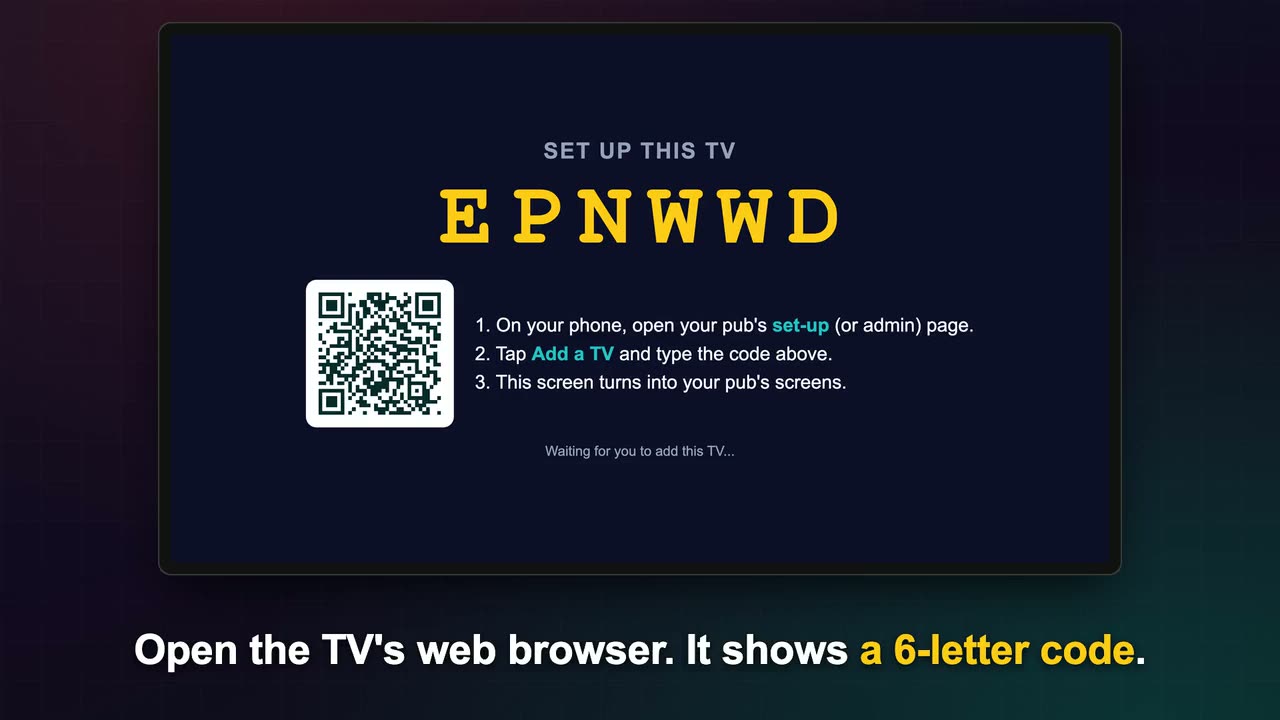
Open the TV's web browser and it shows the code. Smart TV
- Press Home on the remote and find the web browser. It's often called Internet or Browser.
- Go to stocktap.net/play/tv. The 6-letter code appears.
- Type the code into your phone. The TV turns into your pub screens.
Some smart TVs switch themselves off after a few hours, or have clunky browsers. If yours does, a TV stick or an old laptop is easier.
TV stick (streaming stick)
- Plug the stick into a spare HDMI socket and into power.
- Switch the TV to that HDMI input with the Source or Input button.
- Connect the stick to your Wi-Fi, or plug in an Ethernet adapter for a cable.
- Open the stick's web browser. If it hasn't got one, install one from its app store.
- Go to stocktap.net/play/tv and type the code into your phone.
Old laptop or computer
- Plug the laptop into the TV with an HDMI lead, and plug the laptop into power.
- Switch the TV to that HDMI input.
- Open Chrome or Edge, go to stocktap.net/play/tv and type the code into your phone.
- Press the big Go full screen button. It keeps the computer awake while it plays.
- Download the start-up file from the same screen, so it opens full screen every morning by itself (see below).
-
Print your QR posters
Your dashboard makes them for you: an A4 poster, or four table talkers to an A4 sheet. Customers scan them to play on their phones. Put them on tables, the bar and the toilet doors. About two minutes.
-
Your pub details
Six quick questions: pub name and town, opening hours, your local teams, the prizes you'll give, and your Google and Tripadvisor review links. Leave anything blank and come back to it.
-
Your first offer on the TVs
A deal, a food night, the quiz or your band. Take a photo or a short video on your phone (up to 30 seconds), or pick one from your camera roll. Your own photos work best: people know it's your pub. No photo? It makes a clean text slide in your pub's colours.
Videos from iPhones save as MP4 or MOV. Both are fine. Videos play silently on the TVs.
-
Pick your channels and times
Choose what plays between your offers, and when. Every clip is Creative Commons, and the person who filmed it is credited on screen. About a minute.
-
Run a test round
Tap Try it now and a Quick Fire round starts on your TVs. Scan the QR with your own phone and play it, so you know what customers see.
-
Tell your staff
Print the one-page staff guide or send them the link. It covers what customers scan, how to answer "how do I play?", how bingo works and the quiz host screen. About a minute to read.
-
Tell your customers
Ready-made words for Facebook and Instagram, a square picture to post, and a slide for your TVs. Copy, paste, done.

Keep it on all day
Set it up once and the screens look after themselves.
On a laptop or computer
- Go full screen. The big button on the TV page. Or press F11 on Windows, or Ctrl + Cmd + F on a Mac.
- Windows start-up file. Download it from the TV page. Press the Windows key and R, type
shell:startup, press Enter, and drop the file in that folder. Next time the computer starts, the screens open full screen by themselves. - Mac start-up file. Download the zip from the TV page and double-click it. The first time, right-click the file and choose Open. Then add it in System Settings, General, Login Items so it opens after a restart.
- Never sleep. Set the screen and sleep settings to "never" while it's plugged in. On a Mac that's System Settings, Lock Screen, and switch on "Prevent automatic sleeping".
On any screen
- If the Wi-Fi drops, the screen picks up again by itself when it's back.
- Use a network cable if a TV's in a Wi-Fi black spot.
- Turn off the TV's own "auto power off" or eco timer, if it has one.

Rather we did it?
Optional done-for-you set-up: £100, including your first month. We get your TVs, posters and first offer going for you. For pubs that already have a screen that can get online.