Watch it set up, start to finish
1 minute 40. No sound needed, every step is written on the screen.
Tap any picture to see it bigger.
Set it up (about 2 minutes, once)
Get your own copy
Do this bit on a computer or laptop, not a phone. You need a Google account, the same one you use for Gmail is fine.
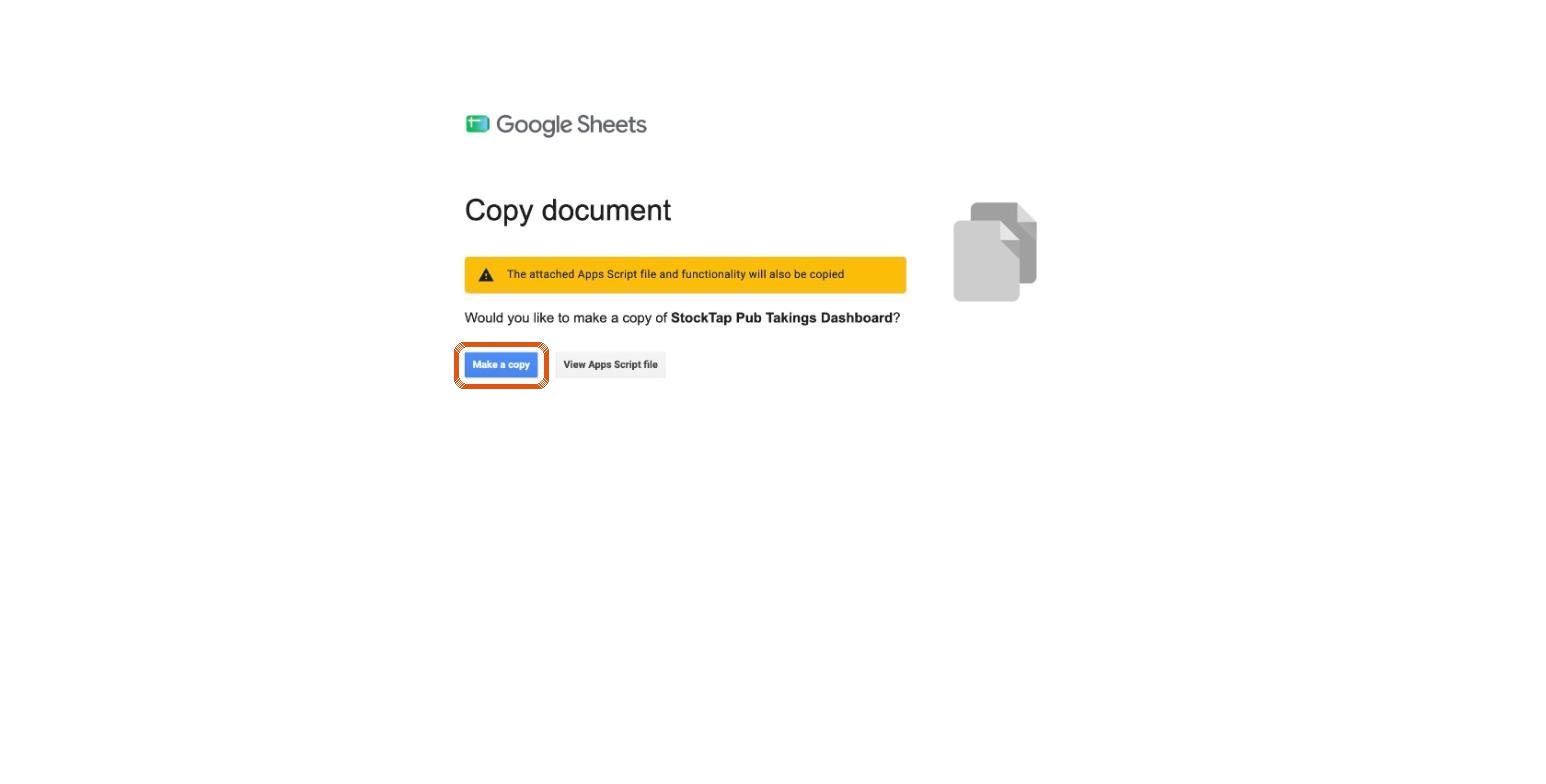
Click the button, then click Make a copy. It saves into your own Google Drive.
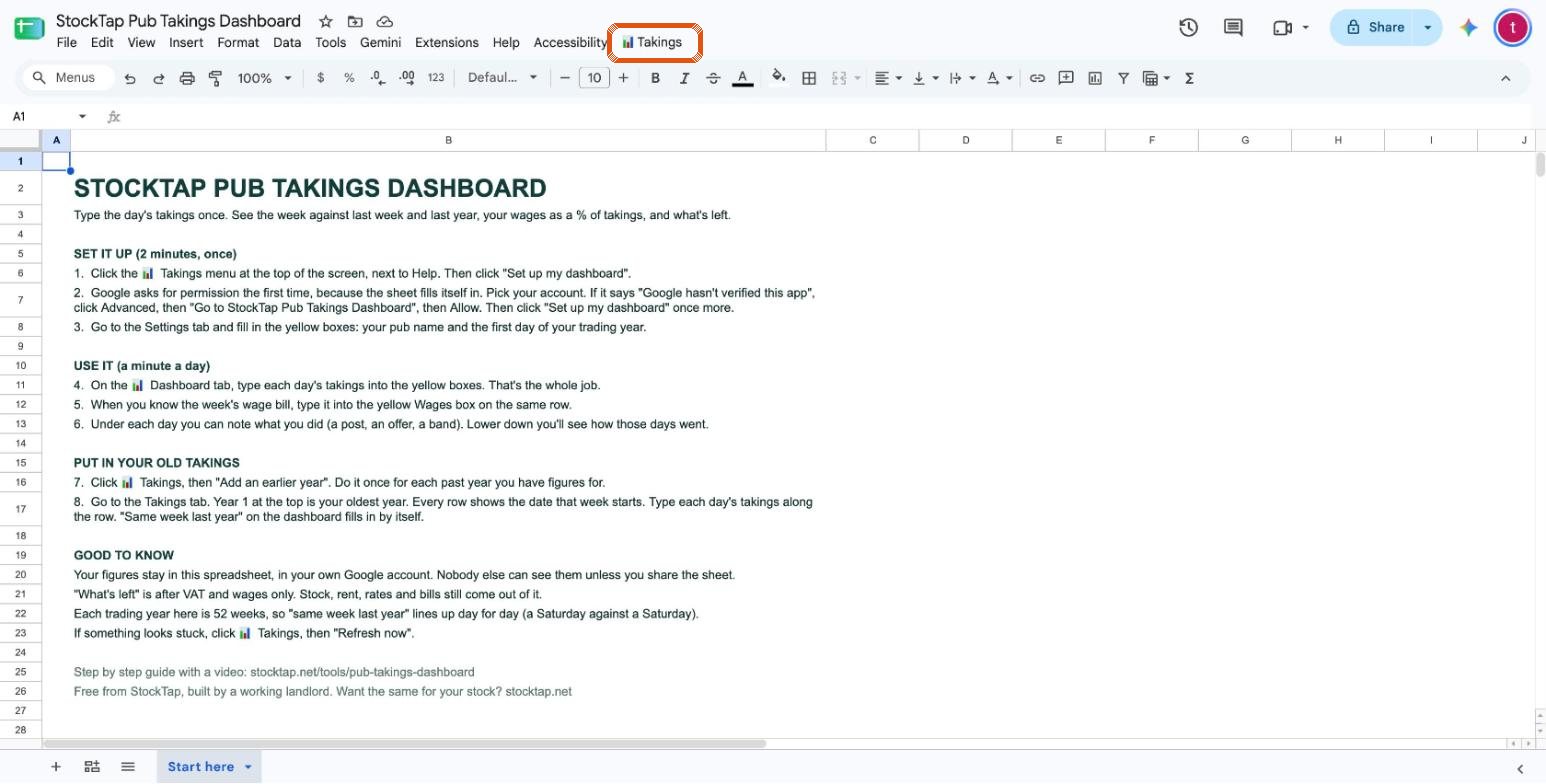
Click the Takings menu, then "Set up my dashboard"
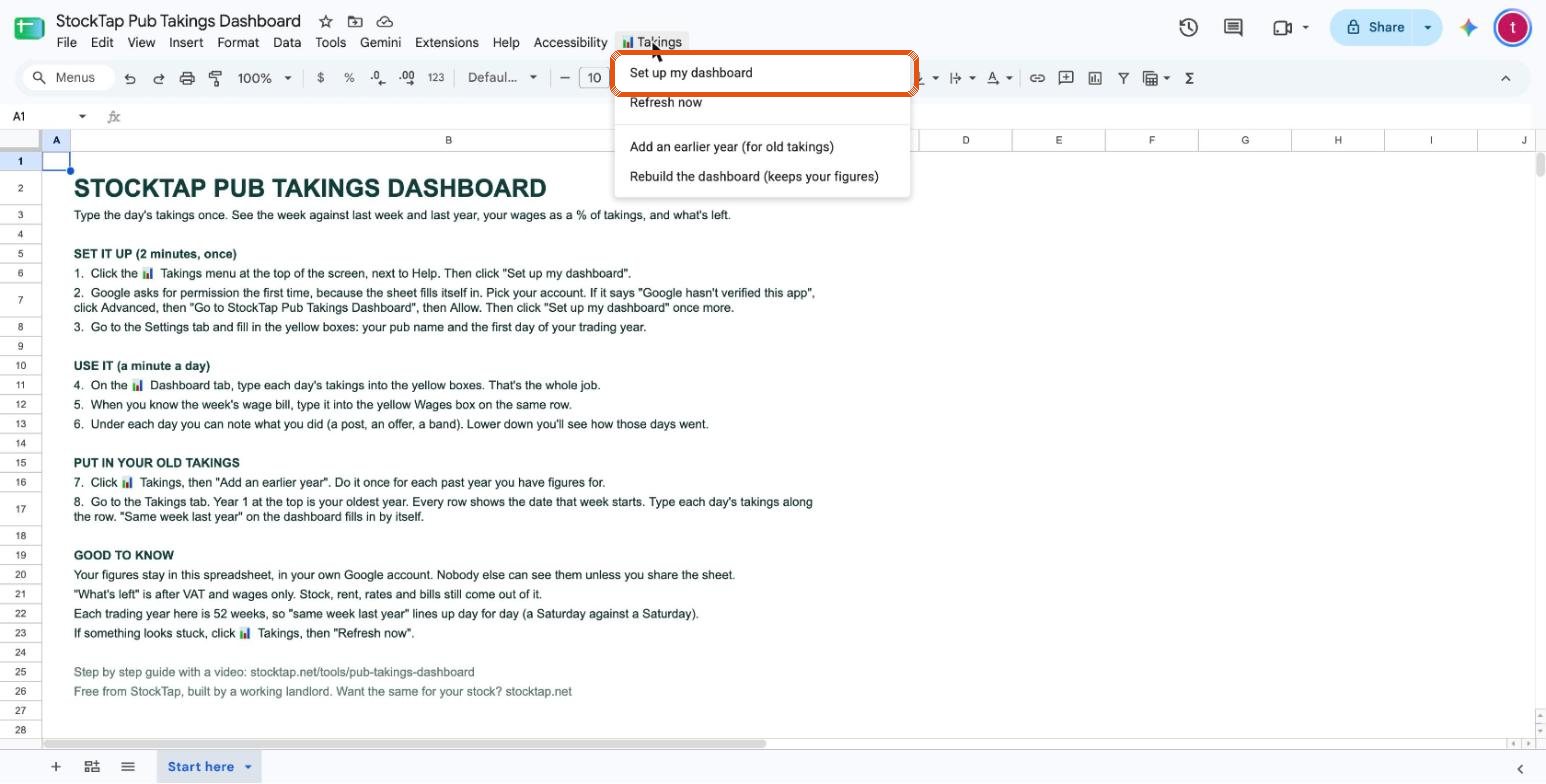
Your copy opens on a page called Start here. Look along the top of the screen, next to Help, for the Takings menu. Give it a few seconds to appear the first time. Click it, then click Set up my dashboard.
Say yes when Google asks permission
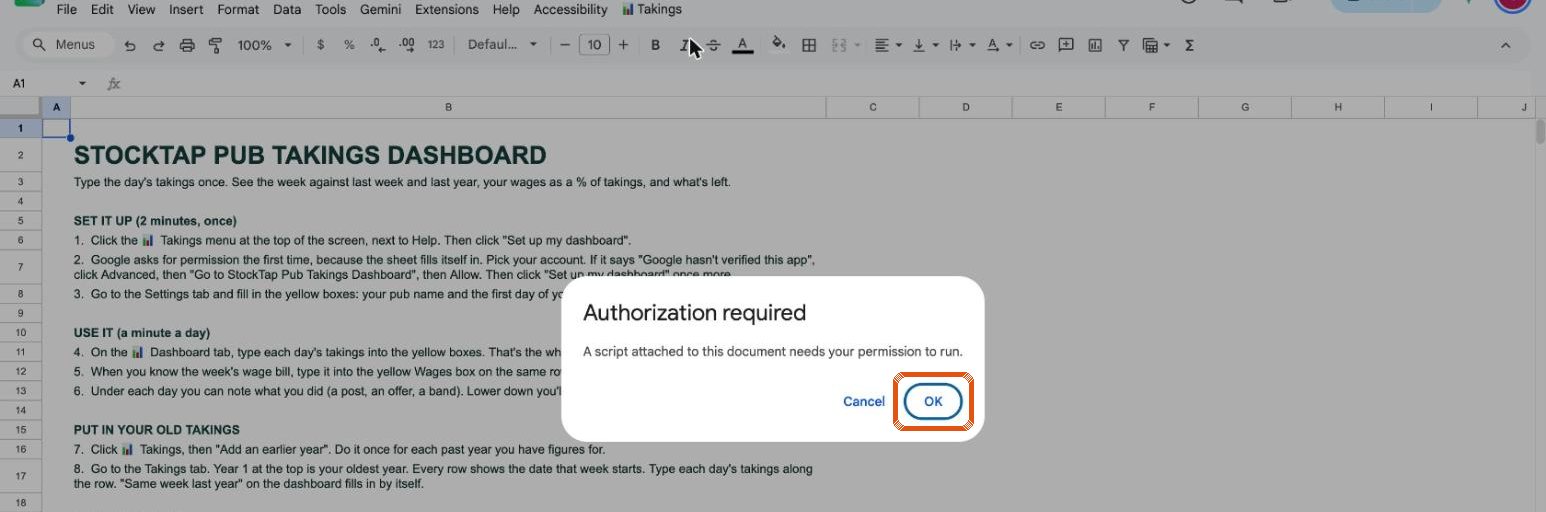
The first time, Google asks if the sheet is allowed to fill itself in. Click OK and pick your Google account.
If you see a page saying "Google hasn't verified this app", that is normal for a small sheet like this that hasn't been through Google's review. Click Advanced, then Go to StockTap Pub Takings Dashboard, then Allow.
The only thing it asks for is to view and manage the spreadsheet it's installed in, which is your copy. It can't touch your other files, and it doesn't send your figures to me or anybody else.
Click "Set up my dashboard" once more
The first click only got the permission. Click Takings, then Set up my dashboard again. It takes a few seconds and builds your Dashboard, Takings, Diary and Settings tabs.
Fill in the yellow boxes on the Settings tab
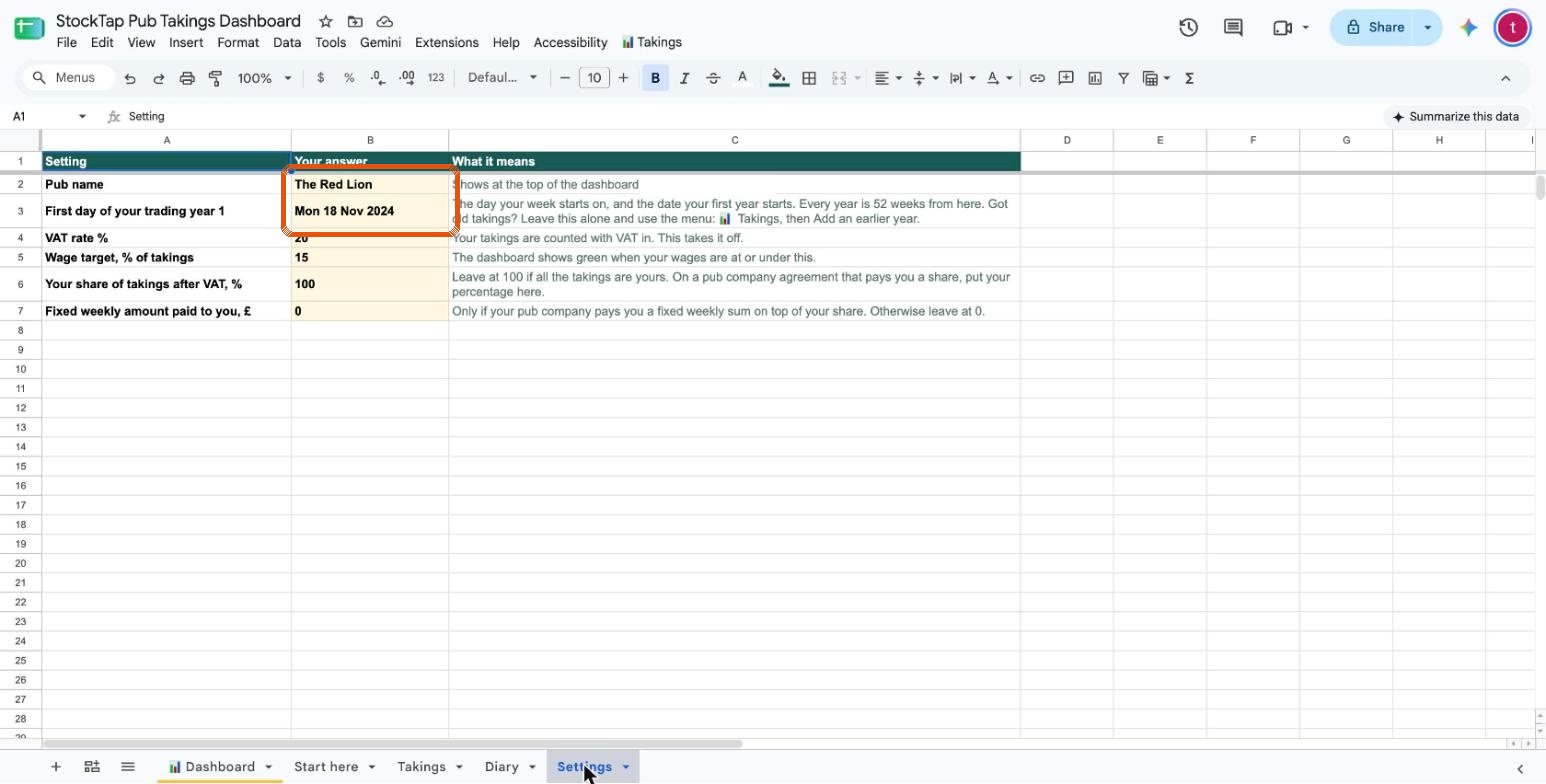
Click the Settings tab at the bottom.
- Pub name. Shows at the top of your dashboard.
- First day of your trading year. The day your week starts on, and the date your year starts. Got old takings to put in? Put the start of your current year here and add the old years in step 9.
- VAT rate. Leave at 20 unless yours is different.
- Wage target. Set at 15% of takings to start with. Change it to your own target.
- Your share of takings. Leave at 100 if all the takings are yours. If you're on an agreement where the pub company pays you a share, put your percentage in, and any fixed weekly amount they pay you in the box below.
Use it each day (a minute)
Type the day's takings
On the Dashboard tab, type each day's takings into the yellow box for that day. Takings with VAT in, the same figure as your till read. That's the whole job.
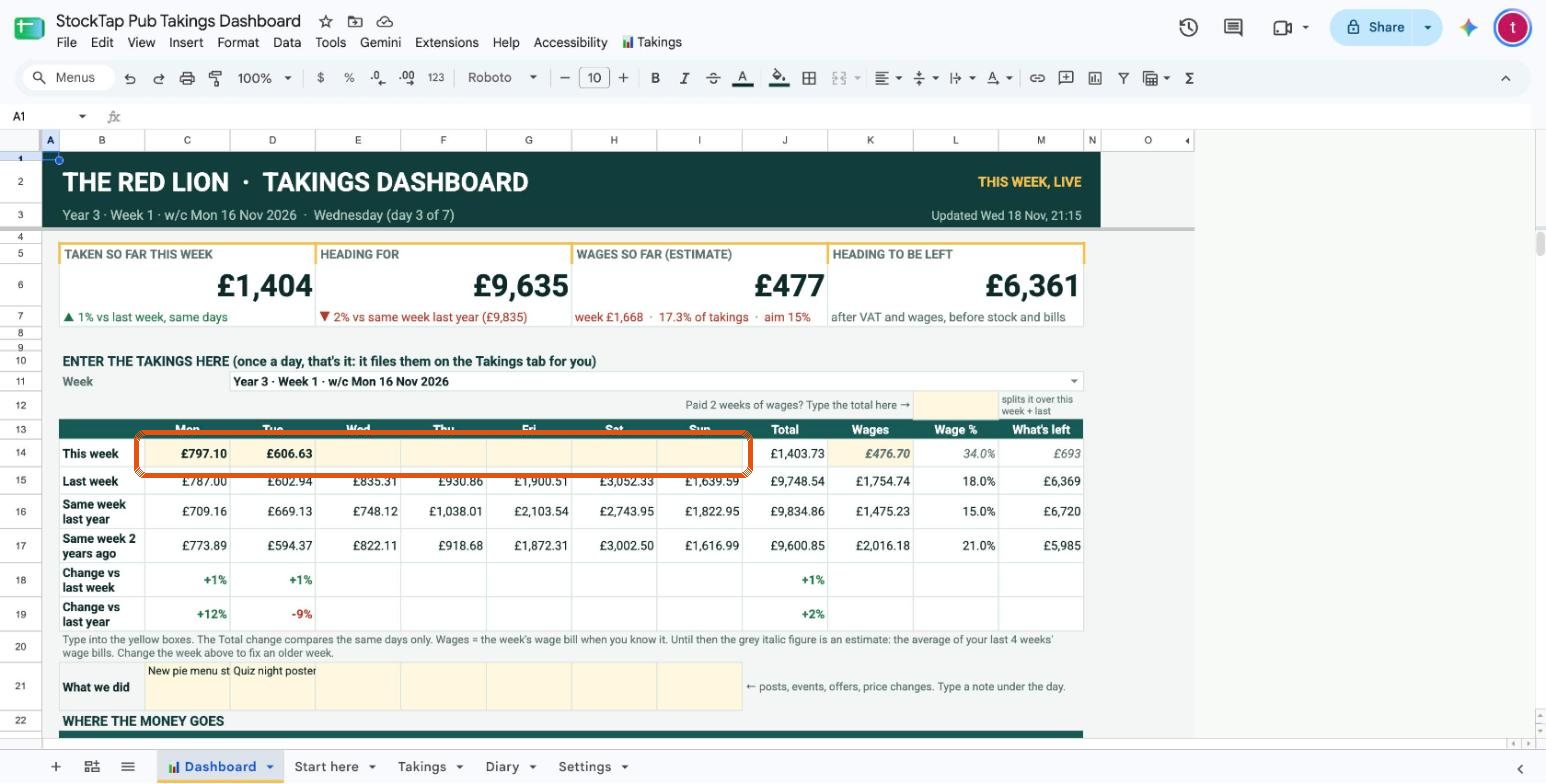
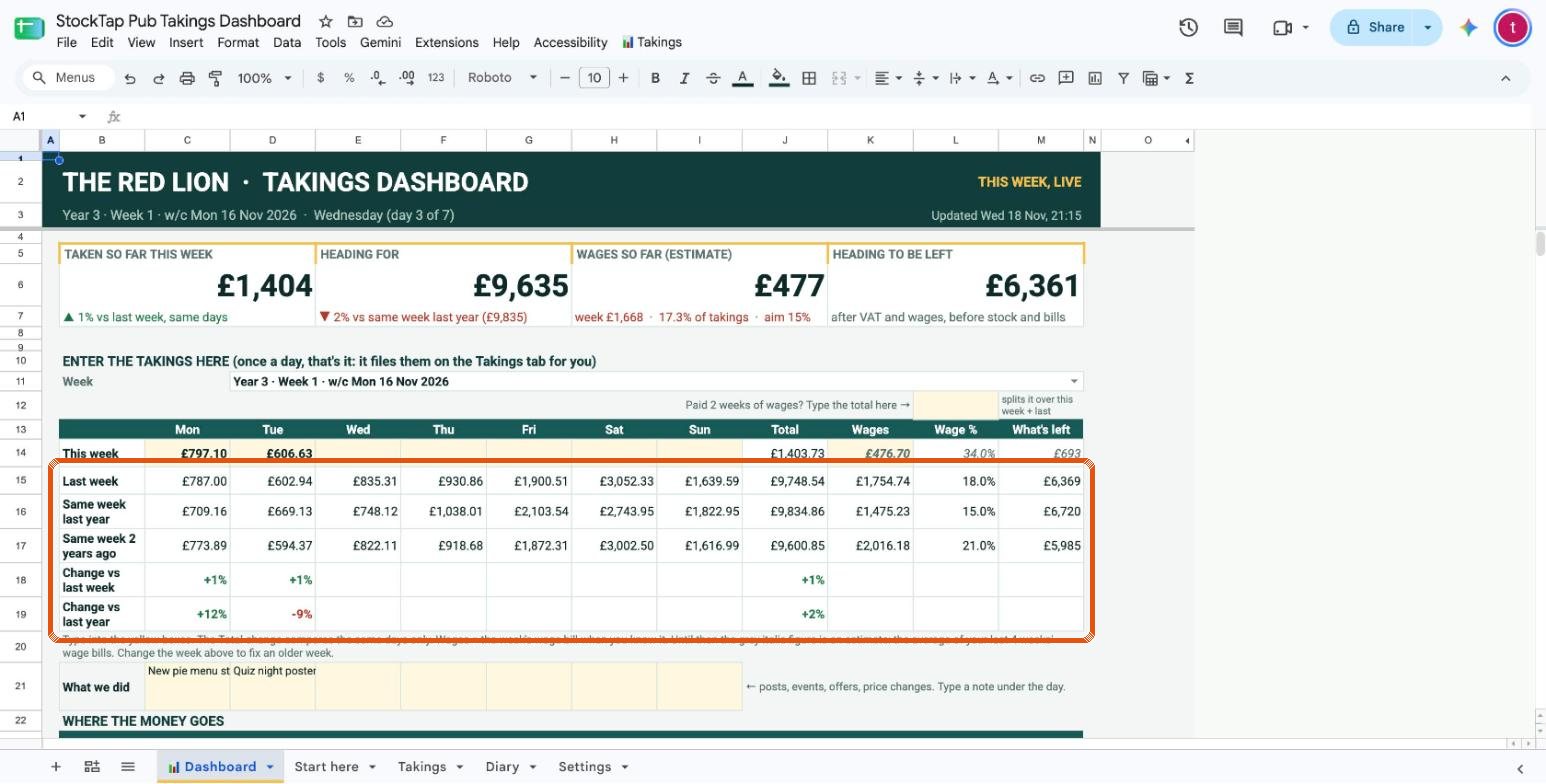
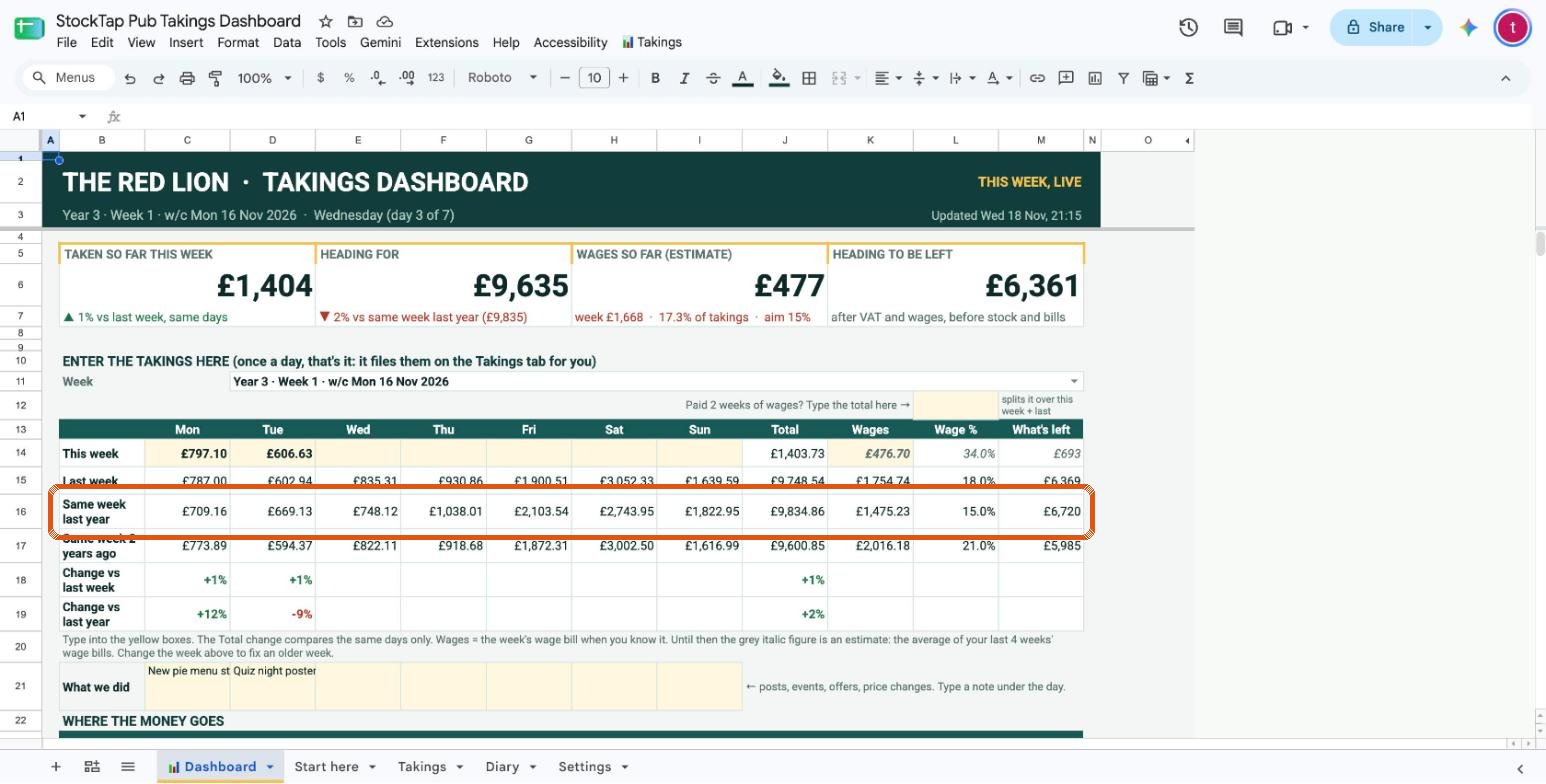
Straight away it lines the week up against last week and the same week last year, day by day, and shows if you're up or down.
Type the week's wages when you know them
When you know the week's wage bill, type it into the yellow Wages box on the same row. The dashboard shows wages as a % of takings and goes green when you're at or under your target.
Until you type the real figure it shows a grey estimate, which is the average of your last 4 wage bills. Paid two weeks of wages in one go? There's a box next to it that splits the total over this week and last week.
Read the cards and the charts
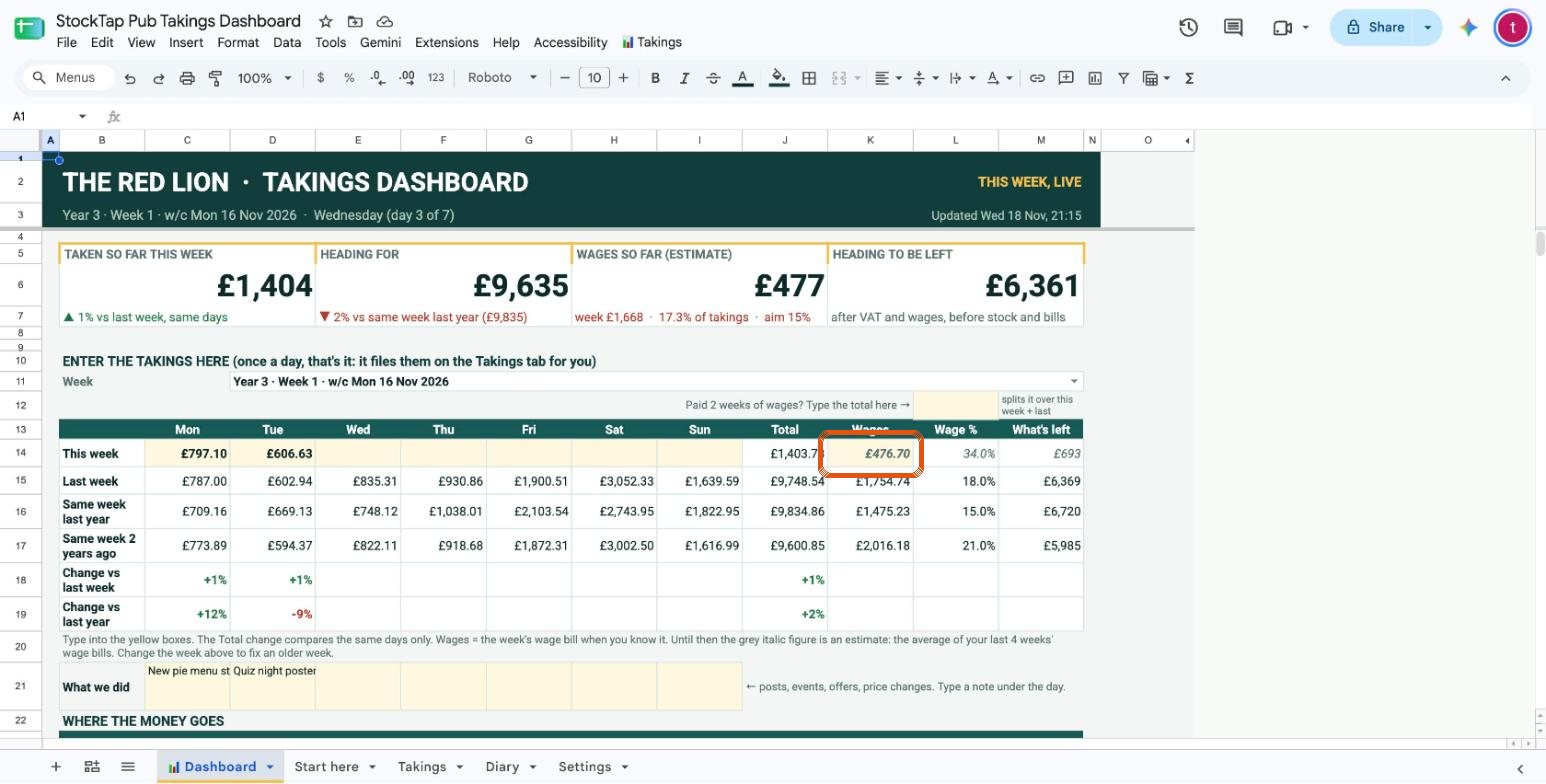
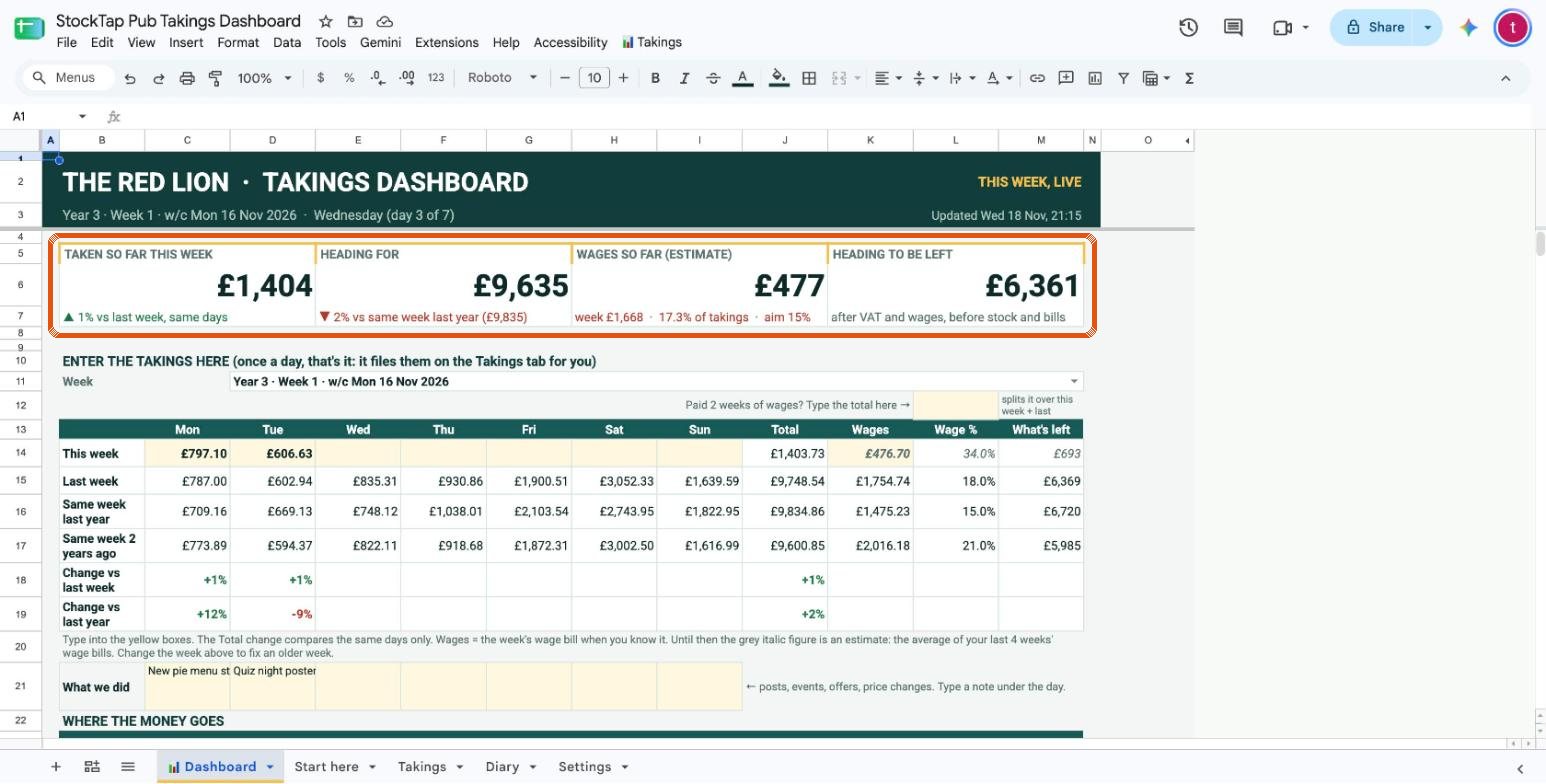
The four cards at the top are the quick look: taken so far this week, what the week is heading for, wages so far, and what's left after VAT and wages.
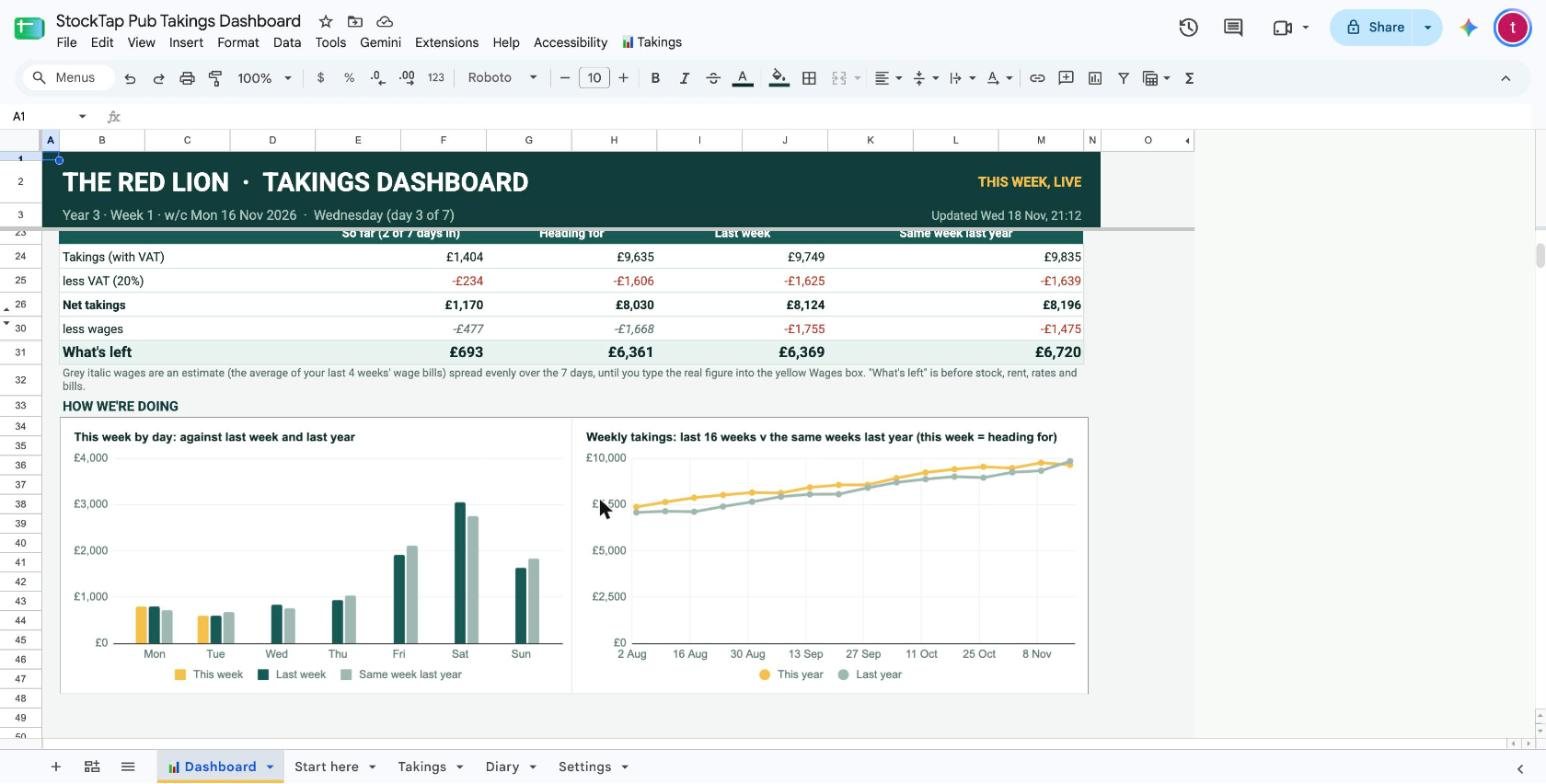
Scroll down and the charts build themselves as you go.
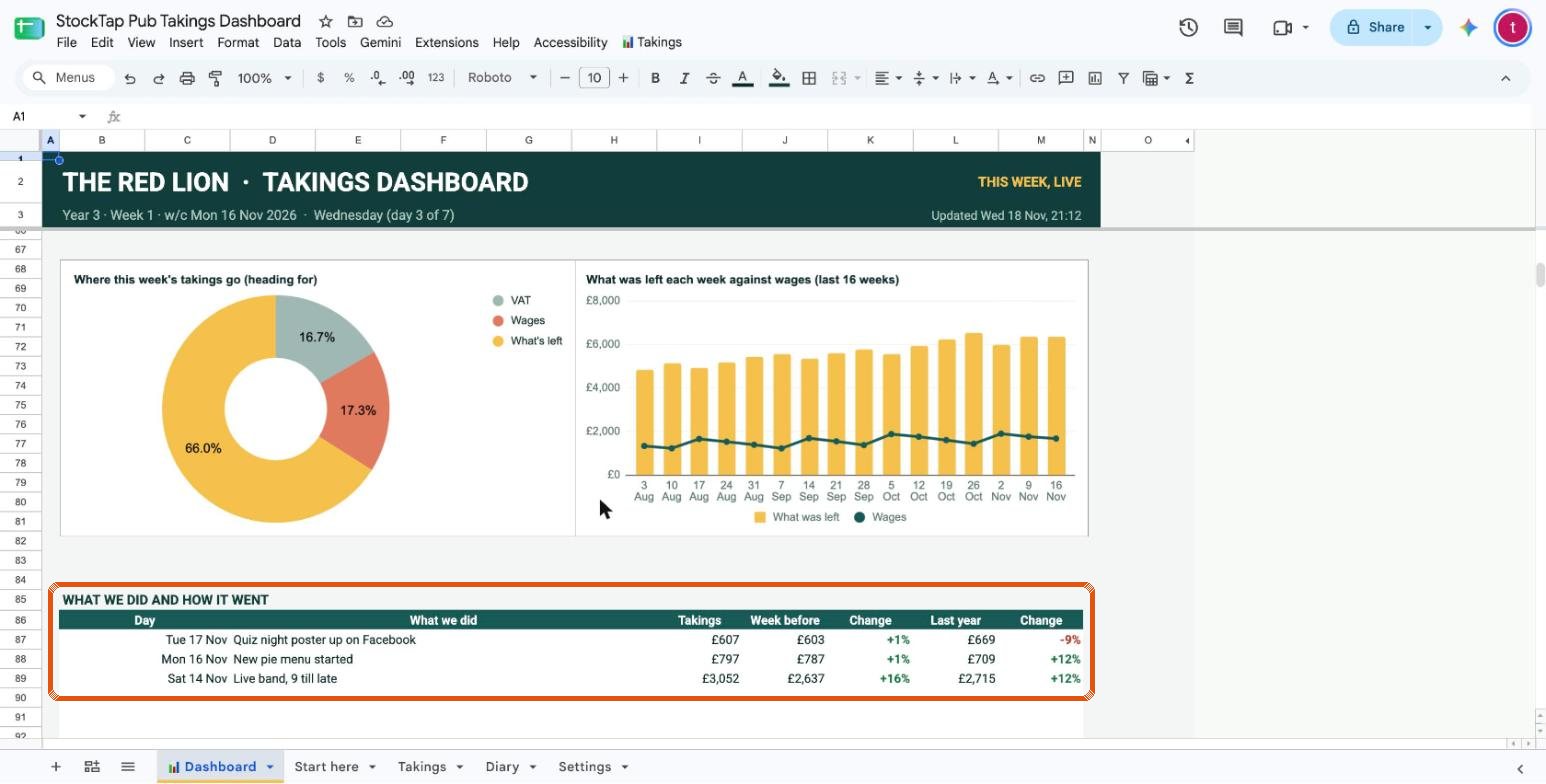
Under each day you can note what you did, like a post, a band or an offer. Lower down it shows how those days went, so you can see what was worth doing again.
Put in your previous years' takings
This is what makes "same week last year" work from day one, so it's worth an hour with your old books if you have them.
Add an earlier year
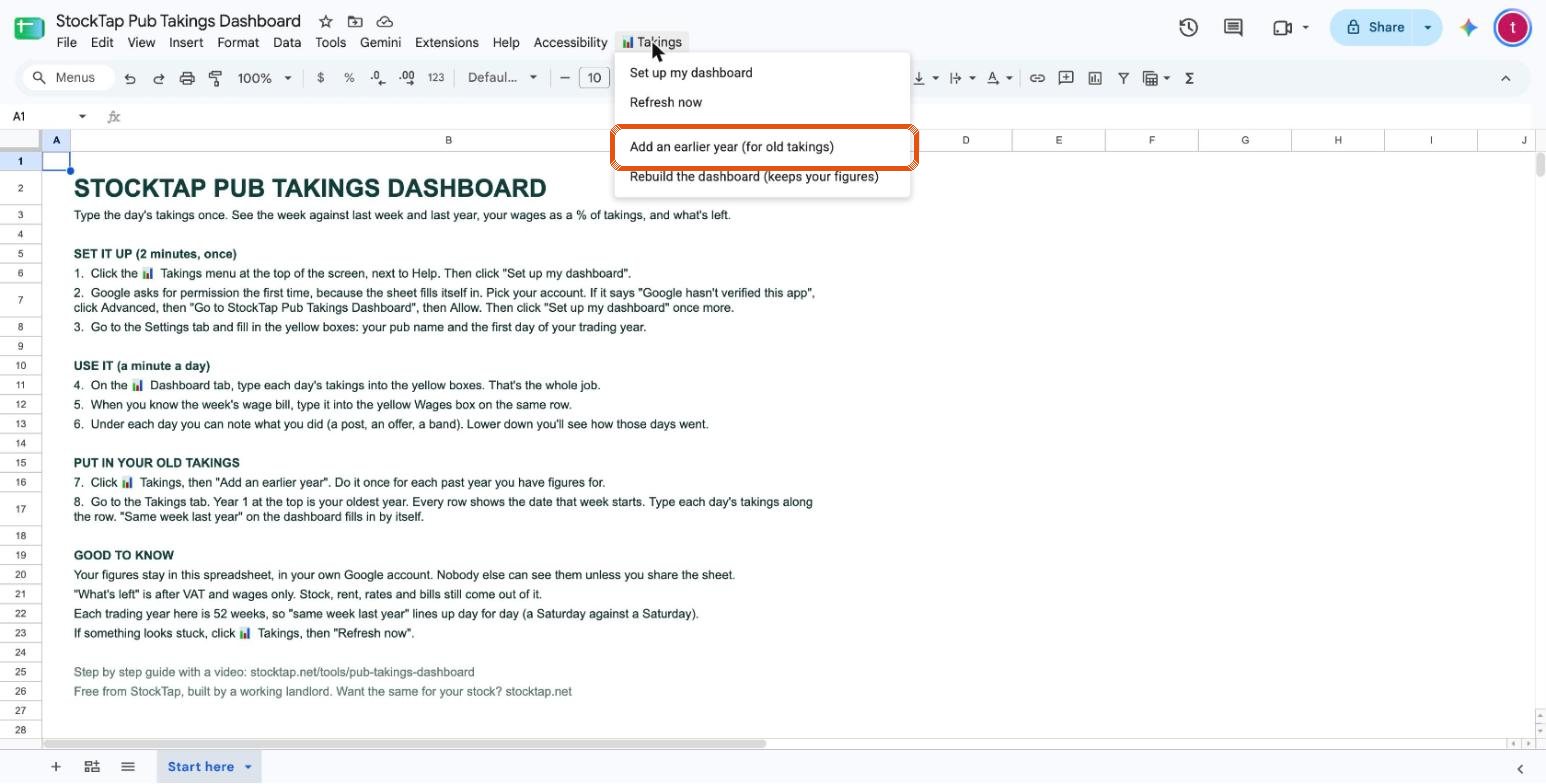
Click Takings at the top, then Add an earlier year. Do it once for each past year you have figures for. Got three years of old takings? Click it three times.
It holds up to 15 years. Anything you've already typed stays on the same dates.
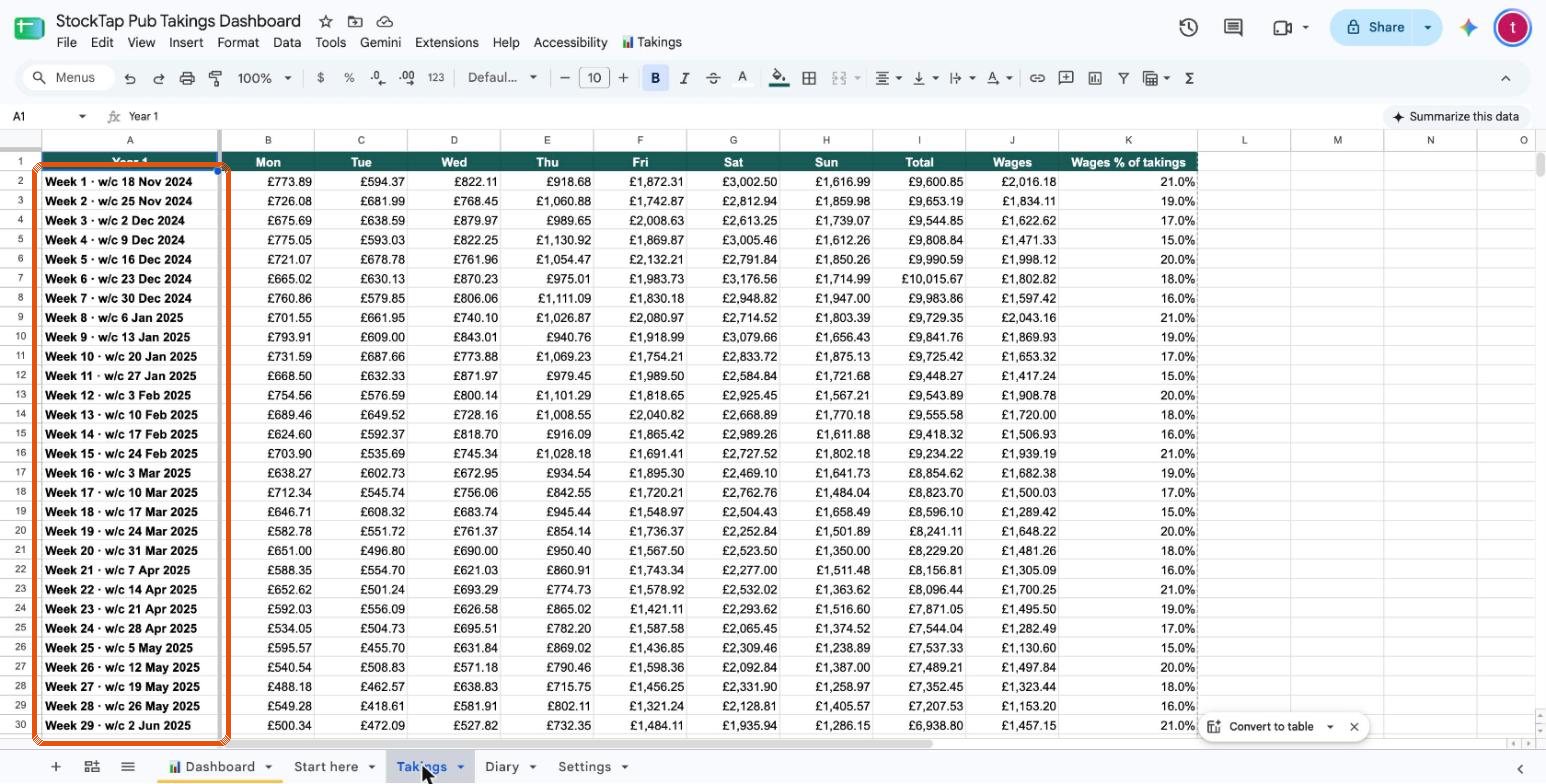
Type your old takings on the Takings tab
Click the Takings tab at the bottom. Year 1 at the top is your oldest year. Every row shows the date that week starts, so you can match it to your old books or till reports. Type each day's takings along the row, and the week's wages if you have them.
Daily figures are best, because the dashboard compares day against day. If you only have a weekly total, split it over the days as near as you can.
Go back to the Dashboard and your old figures now show as "same week last year".
Good to know
Is it really free?
Yes. No sign-up, no email address, no card. You get your own copy and it's yours.
Who can see my takings?
Only you. Your figures stay in your own spreadsheet in your own Google account. Nobody else can see them unless you share the sheet yourself. I can't see your copy.
What does "what's left" mean?
It's your takings after VAT and wages only. Stock, rent, rates and bills still come out of it, so it isn't profit.
Why is every year 52 weeks?
So "same week last year" lines up day for day, a Saturday against a Saturday. It means your year start drifts by a day or two against the calendar each year, which is the price of comparing like with like.
Can I use it on my phone?
Set it up on a computer. I've only tested it on a computer so far, so I'm not going to tell you it works on a phone until I've tried it properly.
Something looks stuck or wrong
Click Takings at the top, then Refresh now. If a tab has got in a mess, Rebuild the dashboard puts the Dashboard back and keeps your figures.
I typed a figure in the wrong day
Type over it, or delete it. The Takings tab holds every figure, so you can fix anything there as well.
Ready?
Get your copy, then come back to this page and follow the steps.